
How to Use ESign iOS
If you need more control over how you arrange and maintain iPhone apps, understanding how to use ESign iOS can help you learn the features provided in its interface. ESign includes tools for handling app files, browsing app libraries, adjusting supported app information and managing various tasks from one place. The accessible options vary according to the version you use, so your interface may vary from screenshots included in older instructions.
Start with the interface.
For instance, when you manage multiple versions of an app, identifying the right file, checking its version and keeping associated files organized can improve efficiency. ESign combines multiple files and app management functions into an iOS interface, making it beneficial to learn how each menu works before trying specialized features.
When you start the ESign app, start by examining its primary interface instead of opening every available option at the start. Depending on the installed version, you might see tabs for files, an app library, signing features, app sources and general preferences. The ESign feature overview provides a preview of these menus, while the layout and availability of special features may vary across versions. Your initial task is to recognize where each feature belongs. File management is beneficial when you want to locate installation packages.
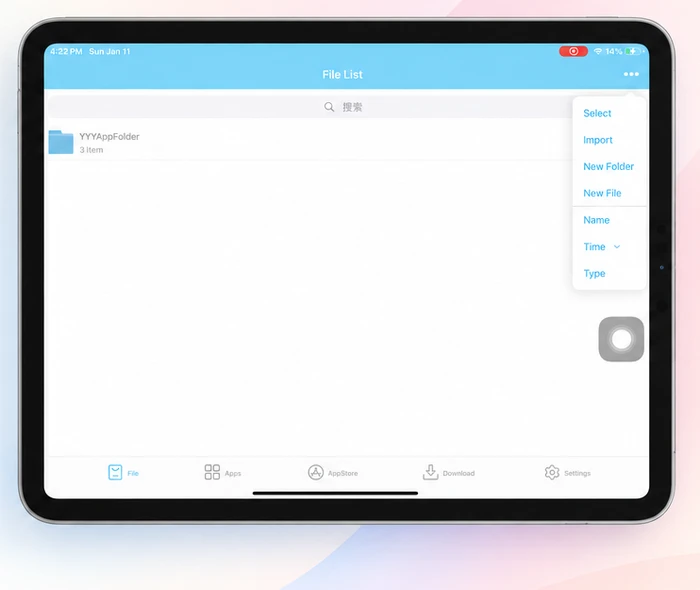
Know your files.
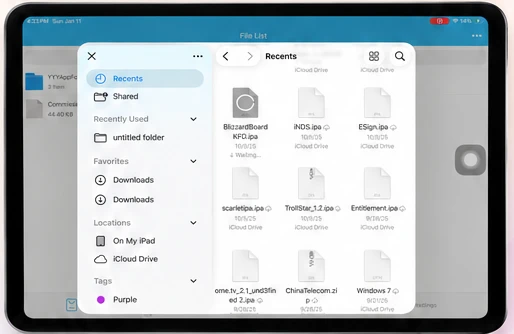
Step 1: The ESign file manager makes it easier to access compatible files saved on your device.
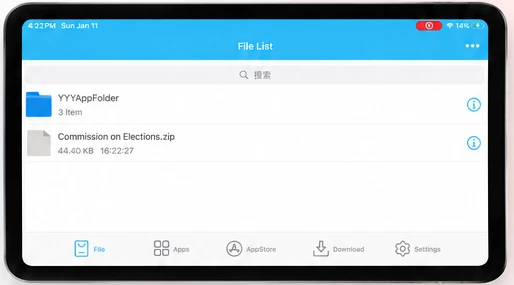
Step 2 :According to your ESign version, supported features might offer navigating folders, adding files, unpacking ZIP archives, creating compressed files and viewing file contents.
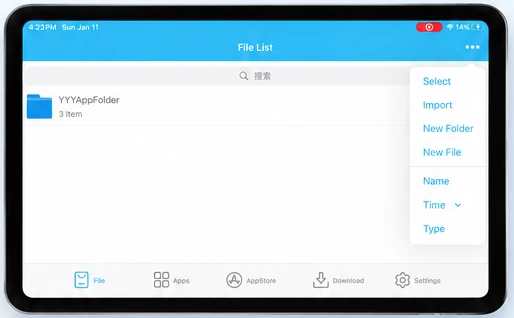
Step 3 :You can review the features available in your interface before depending on instructions created for different releases.
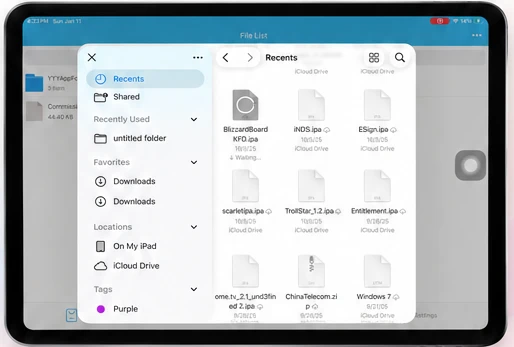
Step 4 : Imagine you have obtained three builds of the same app for trial purposes. If all three files use identical names, choosing the incorrect version becomes more likely.
Find the right build.
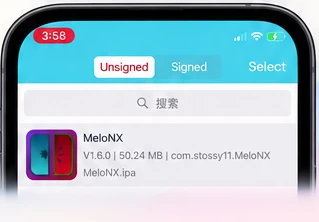
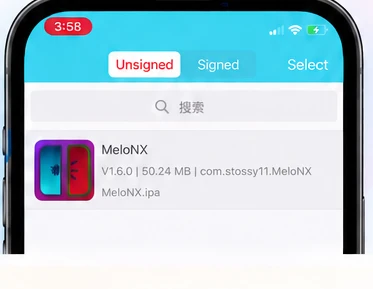
Step 1:An app library shows app packages in a layout that can be easier to browse than a folder containing several files.
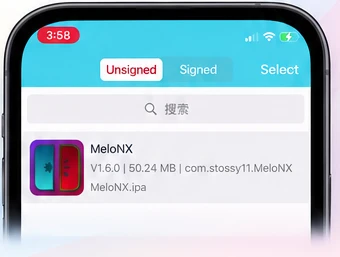
Step 2: Based on your installed release, you may have the option to different signed and unsigned app packages, view available information or access more options for the chosen app.
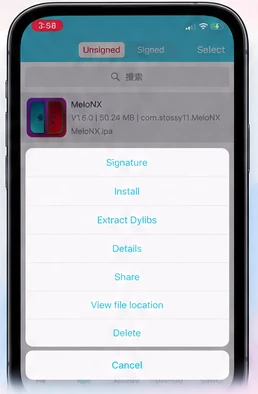
Step 3: The exact information displayed varies according to the package and the features included in your release.
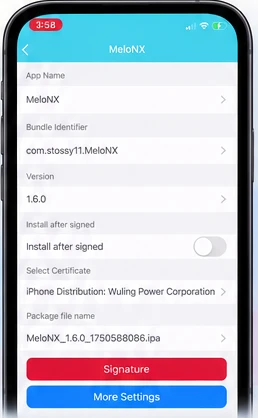
Step 4: When organizing several test builds, use the visible app name and release details to determine the right listing.
Make builds distinct.
Step 1 :Some releases of ESign offer customization options for metadata and supporting files.
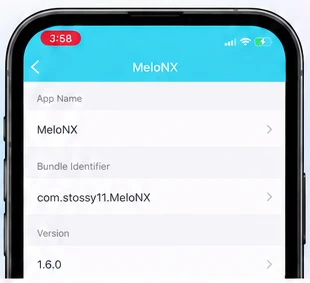
Step 2 :Based on the release, available options might offer adjusting an app’s display name, icon, bundle identifier or release information.
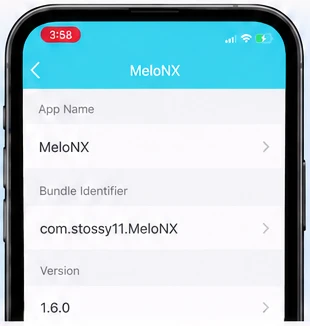
Step 3:The ESign feature page outlines multiple similar features but you should check that your installed version explicitly includes the perk you plan to use.
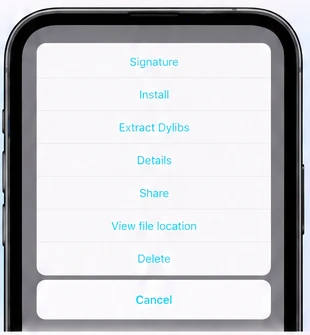
Step 4 : App customization may be beneficial when you manage distinct test versions and need to distinguish them visually.
Check before you choose.
Step 1: Certain ESign versions offer app source or repository options that enable you to browse accessible app listings directly through the interface.
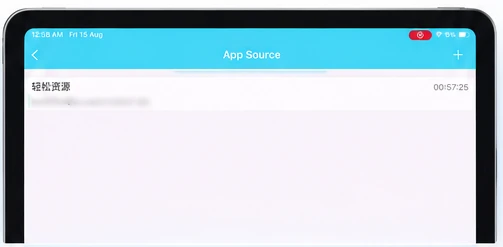
Step 2:When available such a tool may minimize the need to switch frequently between a browser and a file manager.
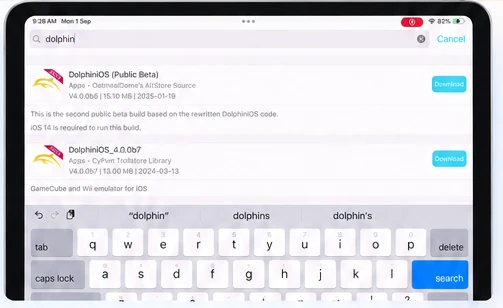
Step 3 :The entries you can access based on the added sources and the version of ESign you are using.
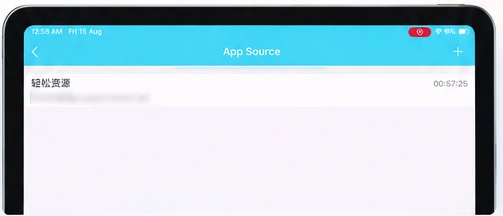
Step 4: If you use an app source, check the publisher, package details, version details and any relevant project documentation before trusting any entry.
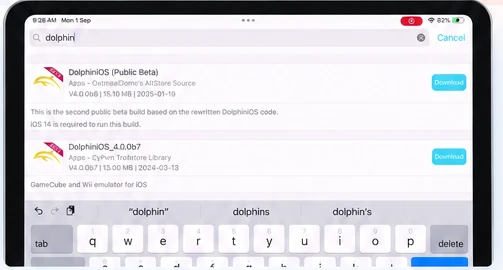
Step 5 : A repository entry does not necessarily confirm that a file is genuine or suitable for your needs. For development work, a project’s own release page is a reliable place to check release notes and known bugs.
A little care. A better workflow.
- - A frequent error is believing that every online instruction presents the identical interface.
- - Different releases may include alternative menu labels or offer different features.
- - If an option is missing, compare your current version to the documentation before concluding the app is not working.
- - Another mistake is editing the app details without knowing what effects they may have.
- - It might be pretty easy to change the app name, but changing a bundle identifier or internal resources could affect app behaviour.
- - You also should not delete unknown files without knowing what they do.
- - Good file organization and purposeful changes make managing the day-to-day ESign tasks easier.
Questions, answered.
How do you use ESign iOS for app management?
You can navigate the file manager, app library and settings included in your release. From there, you can identify supported files, review app details and use the management tools available in the interface.
Can you manage IPA files with ESign?
ESign releases with a file manager can assist you browse and manage compatible files. Available options depend on the installed release and the file format.
Can you change an app name using ESign?
Specific releases include a display-name customization feature. Review the accessible options for your chosen app before making modifications.
What does a bundle identifier mean in ESign?
A bundle identifier is a technical value that serves to identify an app. The display name is separate and changing it might influence the identity of the app, linked services and additional features.
Does ESign include batch operations?
Some releases describe batch processing for available tasks. Verify your installed release to identify which task can be completed on several files.
Why does your ESign interface appear different from online instructions?
The instruction might refer to a different release. Verify your installed version and use documentation that corresponds to your installed app prior to following unfamiliar procedures.
Get familiar. Stay organized.
Understanding how to use ESign iOS gets simpler when you become familiar with the filemanager, app library, customization options and settings provided in your version. Organize files, check up details and use the available management features to simplify the management of multiple app builds. First focus on simple navigation and access only advanced features if you know what they do. Proper care of your files will help you get the most out of ESign and avoid unwanted changes in your app settings.